How an account gets created
You create your own account from the sign-up form, with an address, a password of at least twelve characters, and nothing else. The account exists immediately and can do nothing at all until you confirm the address: we mail you a link that works once and expires after 24 hours, and until it is used the account is refused a session. An unconfirmed address is a claim rather than an account.
Three other paths exist. An administrator can create an account directly, in which case there is nothing to confirm because they already know who you are; the very first account on an installation is created once, at setup; and, where the installation is configured for it, an account can be created by signing in with Google — there is nothing to confirm in that case either, because Google has already confirmed the address (see Signing in with Google, which also explains why such an account has no password). If the confirmation message never arrives, the sign-in page will offer to send another once you have entered a correct password.
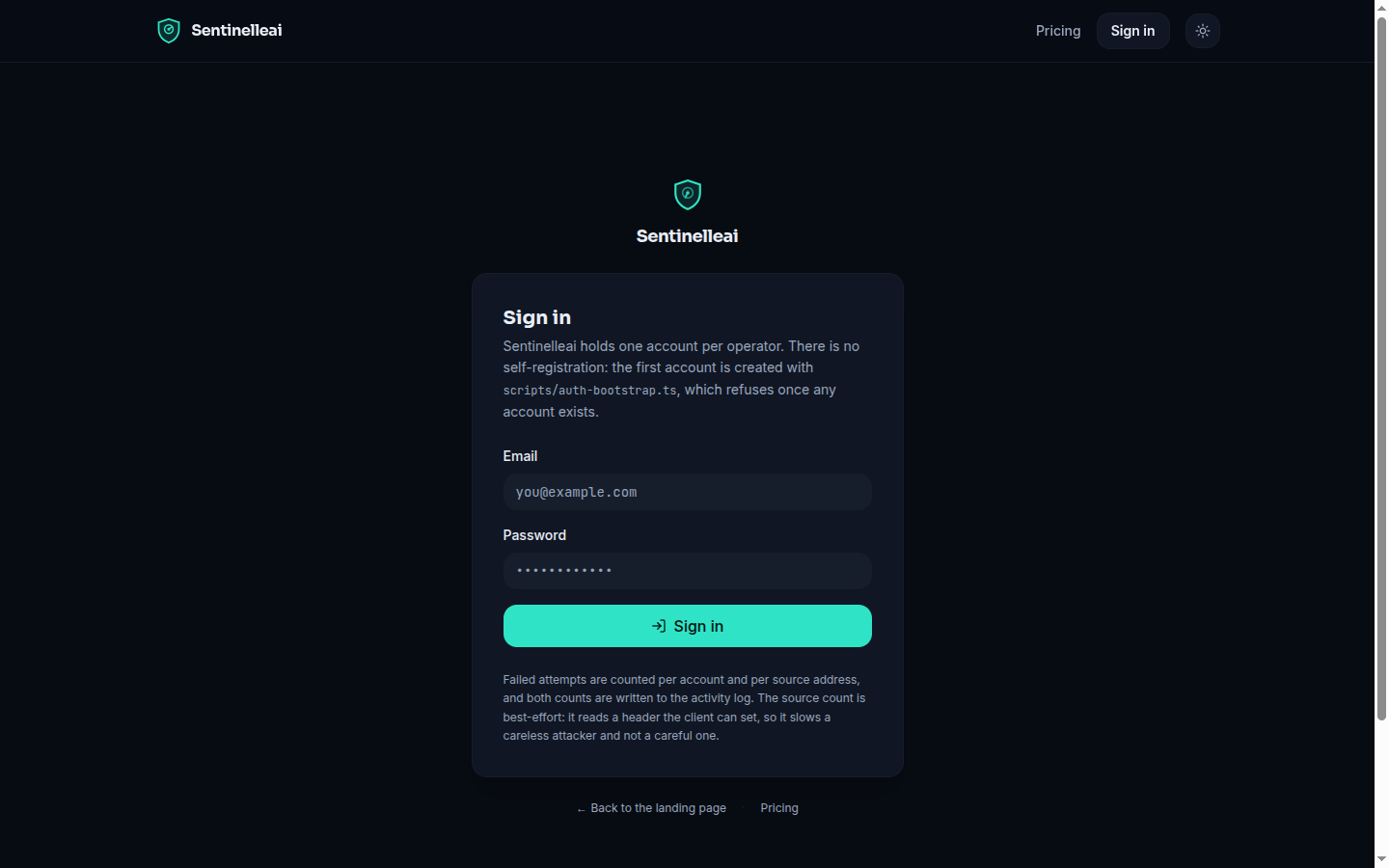
Signing in
Sign-in takes an email and a password. On a wrong password or an email with no matching account, Sentinelleai returns the same message and takes the same amount of time either way — so a failed attempt cannot be used to discover which email addresses have accounts. Repeated failed attempts are throttled: past a point, the sign-in form shows a wait with a countdown rather than a rejected-credential message, because reporting a throttle as a wrong password is how a legitimate user ends up retyping a correct password, or changing it unnecessarily.
Every sign-in address is recorded against the account. The very first address a brand-new account signs in from is not flagged — there is no established pattern yet to deviate from — but once an account has a history, a sign-in from a genuinely new address triggers a notification to the account owner. This never blocks a sign-in: consumer IP addresses change constantly (mobile networks, VPNs, travel, home ISPs reassigning addresses), so refusing a new address would lock out legitimate owners far more often than it would stop an attacker. What this buys is visibility — a sign-in you did not make does not pass unnoticed.
Signing in with Google
Where the installation has been configured with Google credentials, the sign-in and sign-up pages offer "continue with Google" underneath the password form. Where it has not, the option is not shown at all — there is no button and no mention of it, because an option that cannot work should not be advertised. Google is offered as a second way into an account, never as a replacement for the ones described above.
A Google sign-in for an address that already has a password account here is refused, not linked. You are returned to the sign-in page with an explanation and asked to sign in with your password. This is deliberate and it is the important decision on this page: an address coming back from an identity provider says that the provider knows the address, not that the person in front of it owns the account we hold under the same address. Treating a matching address as proof is precisely how accounts get taken over — anyone who can obtain a claim to you@example.com, at that provider or at any other one we might add later, would be handed your account without ever touching your password or your second factor. So the link is only ever made from the inside: sign in with your password, go to Account security, and link Google there yourself. After that, either way in works.
Two-factor authentication still applies after a Google sign-in. Google verifying who you are does not stand in for your second factor. If the account has TOTP enabled, the sign-in continues to the same code step a password would have led to, and no session exists until a valid code is entered. A second factor you can be talked out of by changing how you signed in is not a second factor.
An account created through Google has no password, so Google is the only way into it until you set one. Account security offers Set a password on such an account — with no current password asked for, because there is none to ask for; the session you are already in is the authority. Until you do, unlinking is refused, and the page says so with the button disabled rather than removing the only credential the account has and leaving you outside it. Once a password exists, Google can be unlinked and either way in works.
Two-factor authentication
Sentinelleai supports TOTP (time-based one-time codes from an authenticator app — Google Authenticator, Aegis, 1Password, Bitwarden, and similar) as an optional second factor, managed from your account security page. It is verified with a short tolerance window around the current 30-second step, so a code entered right as the clock rolls over, or with minor device clock drift, still works — without widening the window any further than that.
- 1
Open your account security settings
Sign in, then go to Account security. - 2
Start enrollment
Scan the QR code (or enter the secret manually) into your authenticator app. - 3
Confirm with a code
Enter the 6-digit code your app is currently showing to confirm the secret was captured correctly. - 4
Save your recovery codes
A set of one-time recovery codes is generated at enrollment. Store them somewhere safe — they are the way back into your account if you lose access to your authenticator app.
Once enabled, a correct password takes you to a second step asking for a 6-digit code (or one of your recovery codes). A wrong or expired code at this step is throttled the same way a password attempt is. A Google sign-in reaches the same step: the factor is a property of the account, not of the way you started signing in.
Known sign-in addresses
Your account security page lists every address your account has signed in from, when it was first seen, when it was last seen, and how many times. This list is purely informational: as above, a new address is never blocked, only reported.
Organisations and shared plans
An organisation is a group subscription layered on top of individual accounts, not a separate data store. An organisation owner adds members by email; every member signs in with their own account and inherits the organisation's plan, under one shared bill. Roles are owner (creates the org, holds the billing relationship), admin (can add and remove members), and member (inherits the plan's entitlement only).
The owner cannot simply be removed like any other member — an organisation with no owner would have nobody left to hold its billing relationship. Instead, the owner's own Danger zone offers two ways out: transfer ownership to another current member (the old owner becomes an admin, the new one takes over billing), or delete the organisation outright, which removes every membership along with it. Deletion is refused while the organisation still has an active team subscription — cancel it in the billing portal first. Both actions require a written reason and are recorded, with the account's identity, in the evidence ledger.
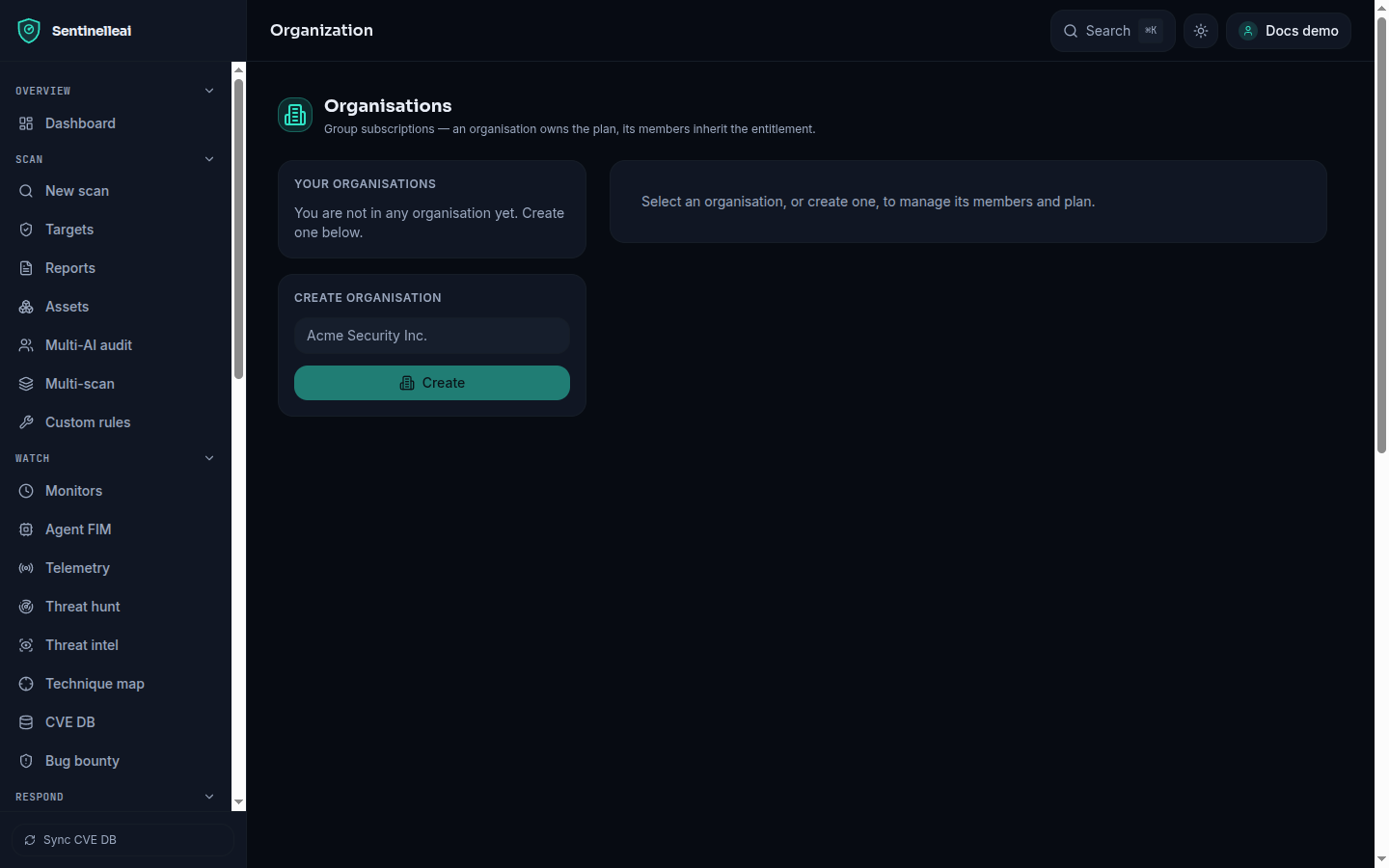
Sharing a plan does not share your data by default. Every scan, report, and finding stays owned by the individual account that created it — an organisation widens who can pay for a member's usage, not who can see a member's results. Only an administrator of the installation sees every account's rows; joining an organisation changes nothing about visibility.
What you can see
Every route that reads scans, findings, or other owned data applies one rule consistently: without authentication required (a single-operator install), everything is visible; with it required, an ordinary member sees only rows they own, an administrator sees everything on that installation including legacy rows with no owner, and a request with no valid session sees nothing. This rule is centralised rather than re-implemented per page, specifically so that the list view and the by-id view of the same data can never drift apart and expose one tenant's report through the other tenant's route.