What a monitor is
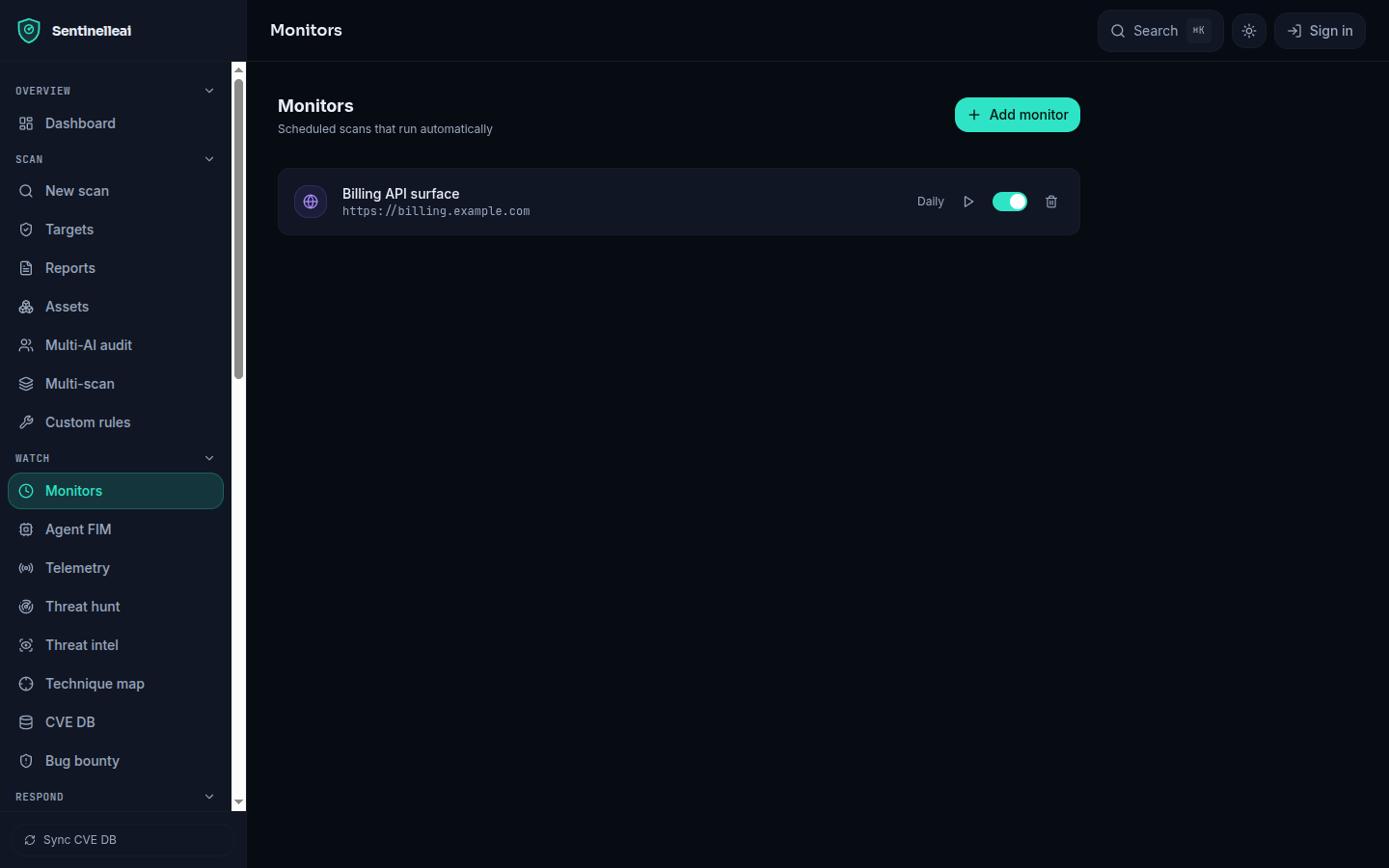
A monitor is a saved target — a web URL, a DNS domain, or a code path — with a schedule attached. You choose daily or weekly. Once due, a monitor runs the same scan you could trigger by hand: a web monitor runs a web scan, a DNS monitor a DNS scan, a code monitor a code scan. A background check runs every hour and starts any monitor whose interval has elapsed since its last run; nothing runs on a finer cadence than that hourly check, so a daily monitor can run up to roughly an hour late relative to the exact moment it became due.
A separate kind of monitor watches a deployed smart contract instead of a web target: it polls the contract's bytecode, a watchlist of admin events (ownership transfer, upgrade, role grants, pause/unpause), and any view functions you ask it to track. It is typically created automatically once a smart-contract audit records a deployed address. This on-chain monitor only alerts — it never sends a transaction. For a monitor that can pause a contract, see Auto-pause, a separate, explicitly-armed function.
Baseline then drift
Two watches behind your monitors follow the same rule: the first pass establishes a baseline and announces nothing, and only what appears afterwards is news. A new-CVE watch matches your inventoried dependencies against advisory feeds; on the first pass every match already found is recorded as known, not alerted — alerting on that backlog would bury the one row that actually matters under everything that was already true. The same applies to the attack-surface watch, which tracks open ports, your private-surface probe, DNS records and certificates: a port that appears is news, but a port is only reported as having disappeared when the tool that would have seen it actually ran and succeeded on that pass. If the tool failed, timed out, or the host stopped answering, the item is left alone with the reason recorded — it is not asserted to have closed, and it is not asserted to still be open either.
Alert channels
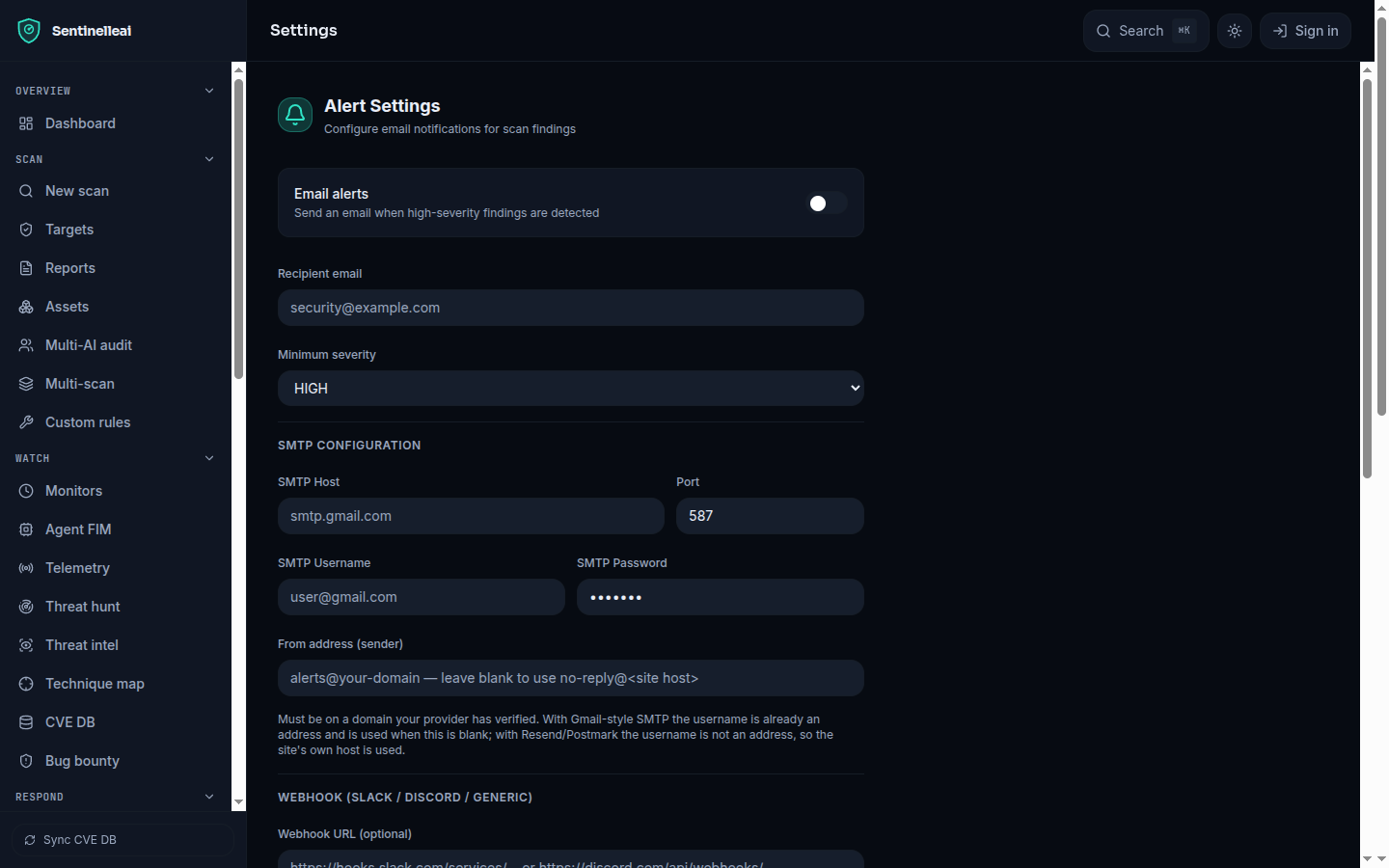
Alerts can reach an email address over your own configured SMTP settings, and a webhook URL — Slack, Discord, Telegram, or a generic JSON endpoint, auto-detected from the URL's host. Configure both from Settings.
- 1
Set the SMTP details
Host, port, username, password, and the recipient address. A password already on file is shown as a placeholder, never in the clear — saving without touching that field leaves the stored password exactly as it was; an explicit empty value clears it. - 2
Set the webhook URL
Paste a Slack incoming-webhook URL, a Discord webhook URL, a Telegram bot URL, or any other HTTPS endpoint. A Telegram URL must carry?chat_id=<CHAT_ID>at the end; the form checks for this at save time, because Telegram silently refuses every message otherwise. - 3
Send a test
Both the email and webhook sections have a test button that sends a real message through the configured channel and reports success or failure immediately, without waiting for a scan.
On read-back, neither secret is ever returned in the clear. The SMTP password comes back as a <set> or <unset> placeholder. The webhook URL comes back with its host visible and everything else masked — a Telegram URL as api.telegram.org/bot••••/sendMessage, since the bot token embedded in the URL is itself a live credential.
What triggers an alert
| Source | Fires when |
|---|---|
| A scan (web, DNS, code) | At least one finding is at or above your configured minimum severity |
| An AI audit | The verdict crosses your threshold — mapped from minimum severity, or overridden per schedule below |
| The on-chain monitor | Bytecode changed, a watched admin event fired, or a watched view value changed since the last poll |
| The attack-surface watch | A port, DNS record, or certificate appeared, or provably disappeared |
| The new-CVE watch | A dependency now matches an advisory it did not match on the last pass — or any pass, if it is a first sighting after the baseline |
Delivery receipts
Every delivery attempt — email or webhook, successful or not — is written to the evidence ledger as delivered, delivery failed, or delivery skipped (for example, no webhook was configured). The record carries a redacted destination, never a full email address or a webhook URL with its embedded token, and for a webhook, a hash of the response body rather than the body itself. This is what lets an incident report state that an alert fired at a given time and was delivered, or explain why it was not. See the evidence ledger for how these records are chained and anchored.
Scheduled contract audits
A smart-contract audit can be scheduled to re-run daily, weekly, or monthly against a saved source snapshot, or against fresh source fetched at run time when you supply a deployed address and chain. Each schedule carries its own alert override, independent of your general minimum-severity setting: off (never alert for this schedule), FAIL only, or any completed verdict.
"alertOverride": "off" | "FAIL_only" | "any"The platform watches its own health
Sentinelleai runs self-tests against its own protective capabilities. When one degrades or breaks, the operator is alerted and that capability is marked unhealthy so downstream results fail safe: a report says a control could not run rather than presenting a clean result from a tool that has quietly stopped working. A capability that cannot be tested here at all is marked as such — it is never counted as healthy by default.
What monitoring stops short of
- Monitoring runs on a schedule, not continuously. Daily and weekly are the choices; the shortest possible delay between something changing and a monitor noticing it is the length of that schedule, not real time.
- A feed or tool that goes silent is reported as unknown, never folded into a clean result. Silence is not evidence that nothing changed.
- Disabling or deleting a monitor is treated as reducing your protection: both require a stated reason and an acknowledgement, and both are recorded. Re-enabling a monitor needs no confirmation.